









Online Keyboard Tester
Observe key presses, combinations and short repeat intervals on a virtual keymap with ANSI layouts and Mac/Win modifiers. Browser key events can help compare behavior but cannot certify a physical switch or full hardware rollover.
Check key registration, combinations and repeated inputs
What this guide helps you check
Use this test to see which key events and small combinations reach your browser, and to investigate unexpected repeated input without claiming a hardware diagnosis.
Before you start
Connect a physical keyboard and use a desktop browser with this tab focused. Close shortcuts or remapping tools only if you understand their effect; a phone keyboard cannot stand in for a physical keyboard matrix.
Try it step by step
- Choose the closest Layout and Win or Mac legends. These controls change the diagram, not your operating-system keyboard settings.
- Keep this page focused, press and release ordinary letters one at a time, then check the matching key and Event Inspector. Test physical keys; clicking an on-screen key is only a demonstration.
- Hold a small combination such as W + A + Shift, count the active keys, then release all of them. Repeat a different combination rather than treating one success as universal rollover support.
- Use Reset to clear previous results before comparing a suspect key. Press it slowly with full releases, then review the event sequence and the Chatter flag.
- If exporting the event log, keep the downloaded file private. Do not type passwords or personal messages while testing.
A missing key is a routing clue, not a failed switch
First click back into the test page and try an ordinary letter. Browser or operating-system shortcuts, keyboard remapping and laptop Fn firmware can intercept input. A key that works in a plain-text editor but not here may be reserved or represented differently.
Compare the same physical key after reconnecting the keyboard and in another browser or app. If the problem persists, consult the keyboard manufacturer's troubleshooting instructions; do not open the device solely because its keycap stayed untested.
Read the rapid-input flag carefully
The default keyboard flag checks a non-repeat keydown arriving less than 40 ms after that key's previous keyup. It is a browser-observed interval, not a measurement of metal contact bounce, spring fatigue or physical actuation latency. Holding a key can generate operating-system repeat events, which are treated separately.
A flag is a reason to repeat a controlled test. Fast intentional tapping, remapping or the input path can affect the result. A clear result means no matching event was flagged in this session, not that the keyboard is fault-free.
Combinations and key positions
Compare only keys actually delivered to the browser. A successful three-key combination does not establish full N-key rollover; another cluster can behave differently, and browser-reserved shortcuts may interrupt the test.
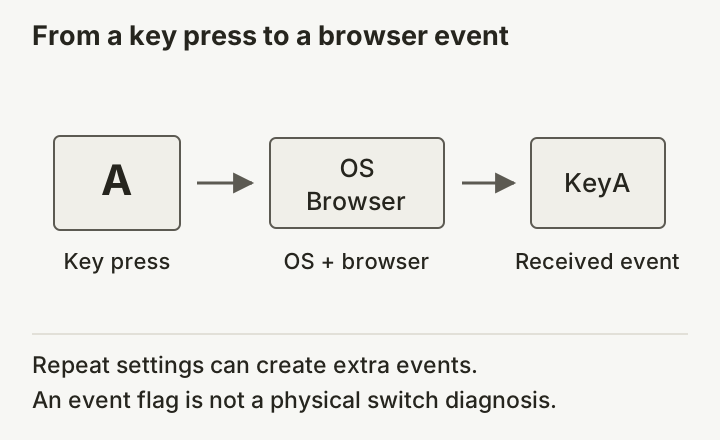
KeyboardEvent.code identifies a browser key-position code, such as KeyA, while key can depend on the selected language and modifiers. code is not an electrical scan code or a raw USB report. Win/Mac legends do not reconfigure the device.
What this test cannot establish
- This test sees browser keyboard events, not the keyboard matrix, USB polling clock or physical input latency.
- Diagnostic inputs stay in this test’s local processing; advertising and hosting are separate site services. Keep sensitive text out of the test.
Interpretation example (illustrative)
Illustrative example, not a hardware test result: a non-repeat keydown 25 ms after that key’s last keyup meets the default 40 ms review condition. Repeat slowly and compare another app before attributing it to a switch.